User Guide for New Organizer Onboarding Process
Steps for Sign up In EventMozo
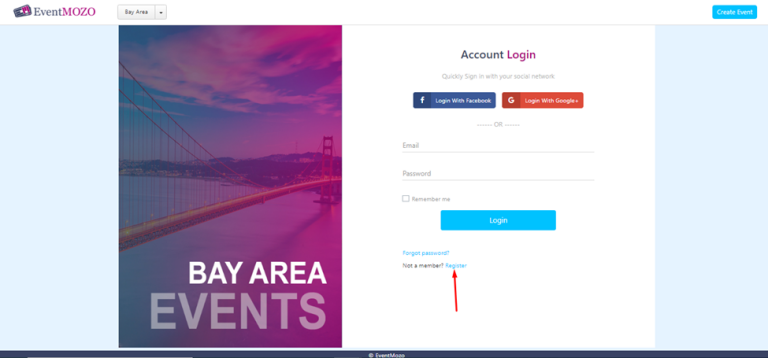
Step 1: - Use the URL https://eventmozo.com/auth/login to sign up in EventMozo. Click on the “Register” button as given in the below screen.
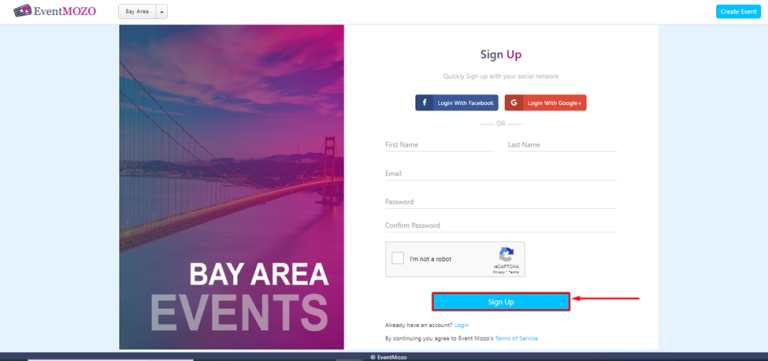
Step 2: - After clicking on the register button, the sign-up page will open up. To signup fill in all the required fields and click on the “Sign Up” button as shown in the below image.
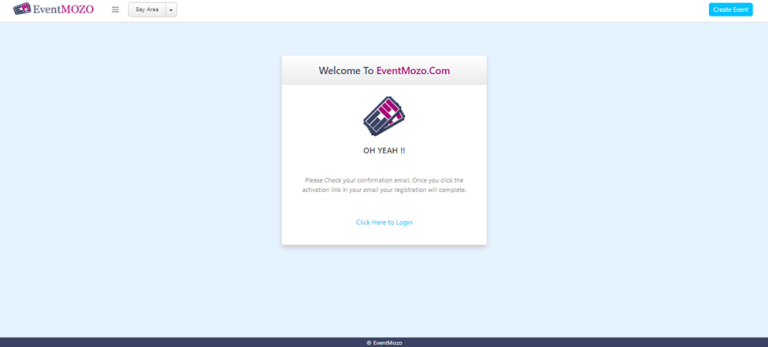
Step 3: - After signup, a notification will display as in the screen below and the user will receive a mail on the mail id which they provided while filling in the details.
Step 4: - A user will get the mail as shown in the below screen, with the link for activation.
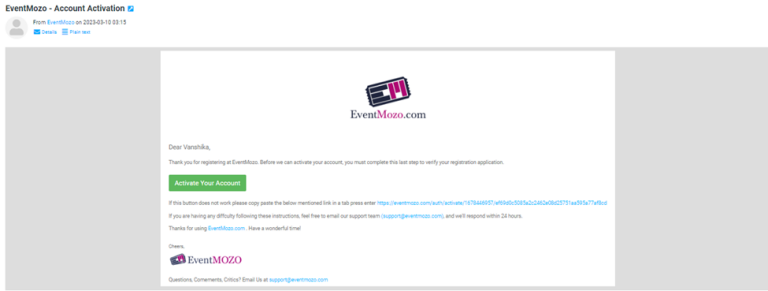
Step 5: - After clicking on the “Activate Your Account” button the account will get activated and a notification will display as shown in the below screen.
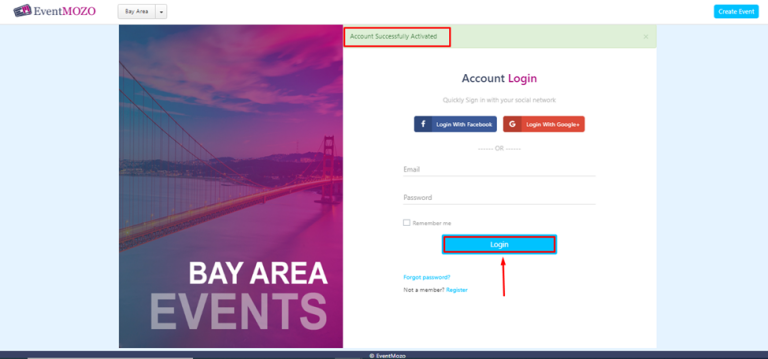
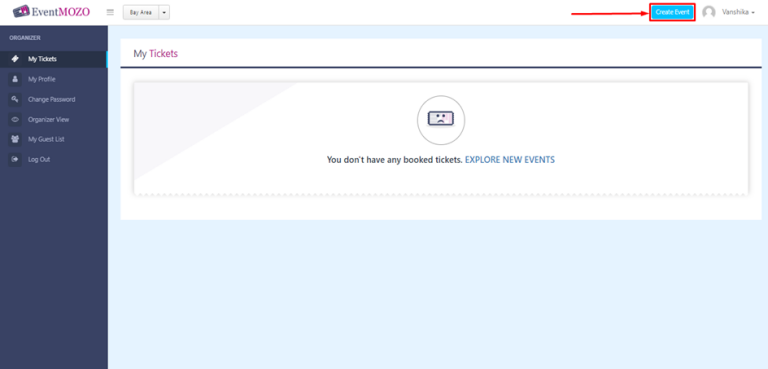
Step 6: - After Activation, now if the user will log in, he will redirect to the “user dashboard” page. To create an event, click on the “Create Event” button from the right side on the top.
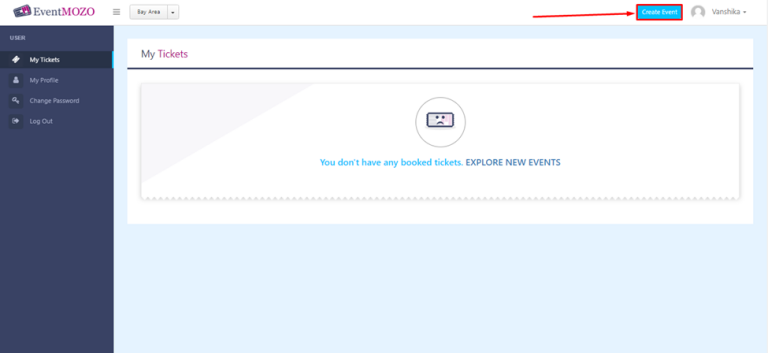
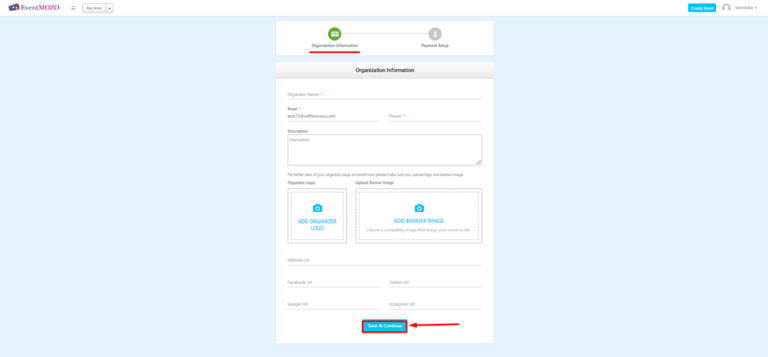
Step 7: - Once you click on create event button it will be redirected to the “Organization setup” page, user can fill all the required fields as their requirements and have to complete these two steps in which includes: -
❖ Organizer Information
❖ Payment setup
Step 8: - At the “Payment setup” page, users will have 2 options from which the user can connect the stripe or skip it according to their choice.
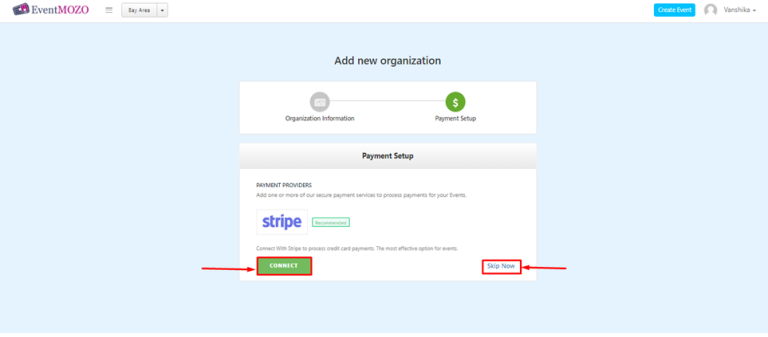
*Getting started with Stripe: create or connect an account
Step 9: - After integrating the payment setup, Organizer will be redirected to the “Organizer Dashboard” page. Now Organizer can create their event by clicking on the “Create Event” button as shown in the below screen.